Price: $19.98
(as of Mar 03, 2026 19:40:13 UTC – Details)
Product description

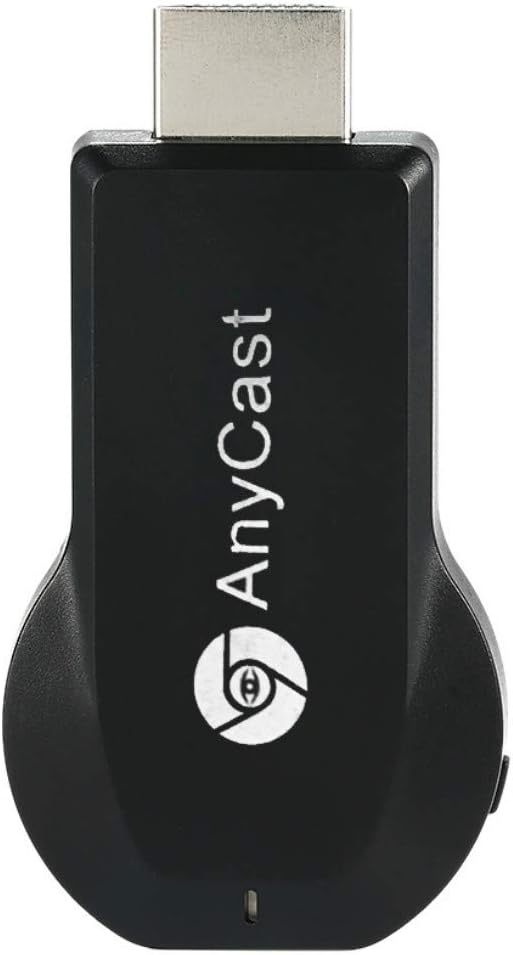
Anycast M2 Wireless HD Display Receiver
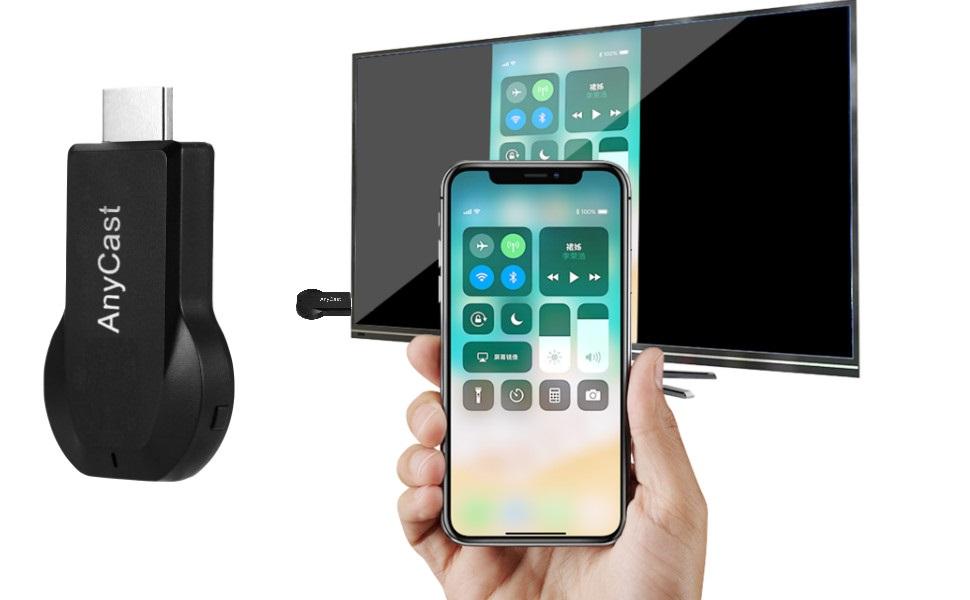
Turn your HDTV into a smart TV with SmartSee Wireless display adapter.
Anycast dongle – Mirror a small screen to a large screen wirelessly.
What is an HD Wireless Display Adapter?
An HD Wireless Display Adapter is to cast what you see on your mobile device(smartphone/tablet) to another big screen(TV/monitor/projector).
Please Note:
A small screen must be Airplay supported, or Miracast supported. Such as iOS and Mac OS devices are Airplay supported devices. Most Android devices and Windows devices are Miracast supported devices.
A large screen must be HD equipped, such as TV, projector, monitor etc.
An Anycast dongle can cast the screen of iOS, Mac OS, most Android devices and most Windows devices onto a HD TV, projector, monitor wirelessly.
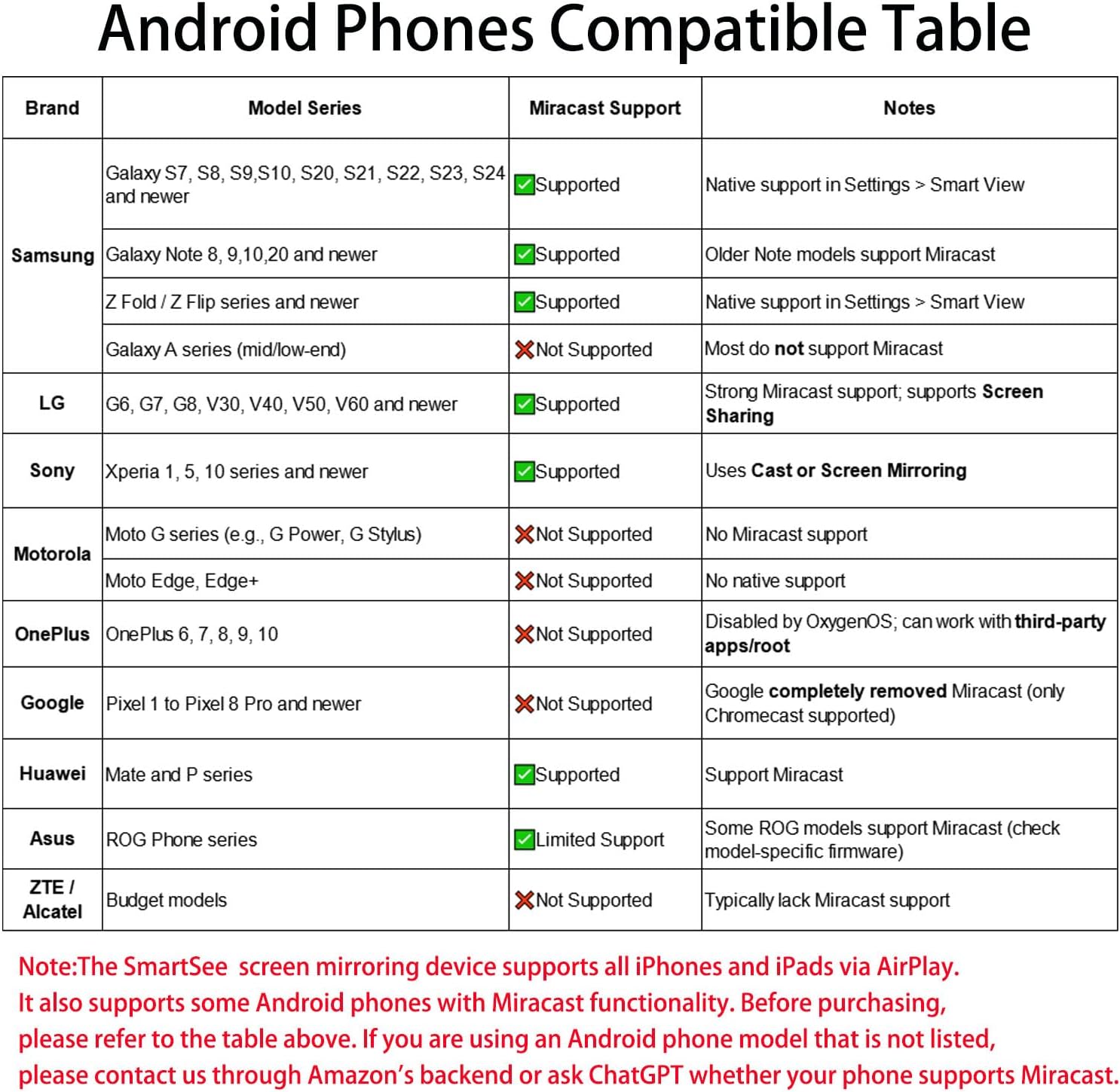
(Note for Android and Windows users: Devices that do not support Miracast will not work with the Anycast dongle. Please refer to the Compatibility Table image or ask “ChatGPT” to check if your device is supported.)
Do I need this item?
Yes, everywhere.
At home: you can mirror your phone/tablet to your TV, no need to stare at the phone alone, watch TV together and free your hands.
At hotel: Setting the TV or TV box is a little troublesome? Just mirror your mobile device to TV or projector by using this item.
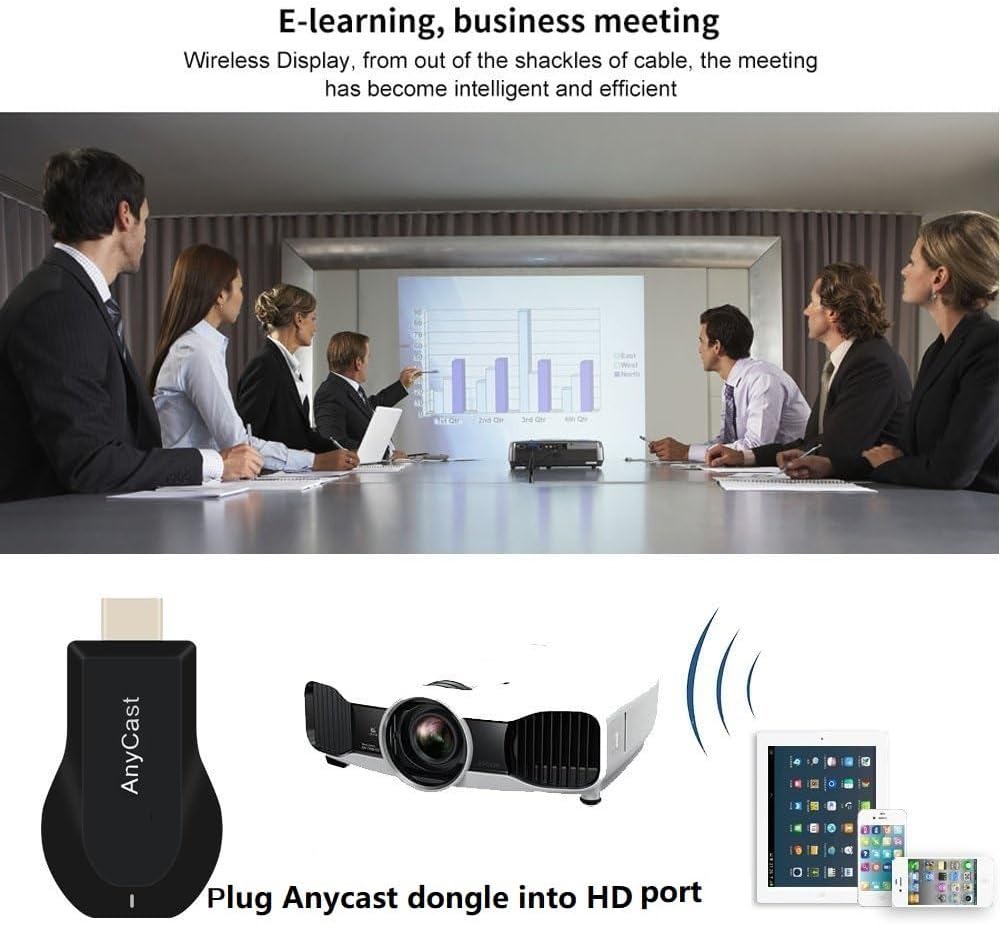
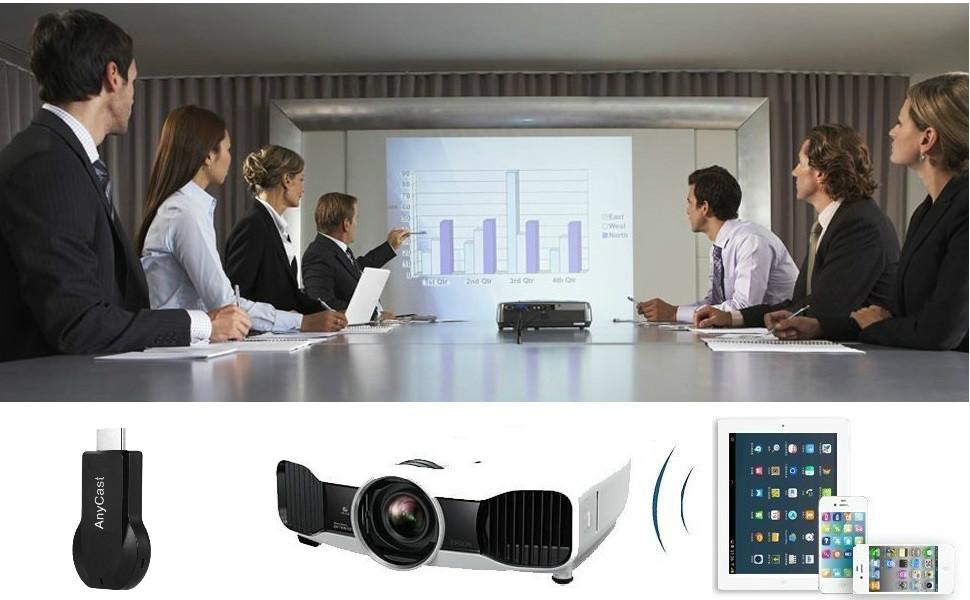
In a meeting room: No need other cables, just connect this item to mirror your tablet pc on your projector wirelessly.
In a classroom: Share your content of courses on big screen wirelessly.
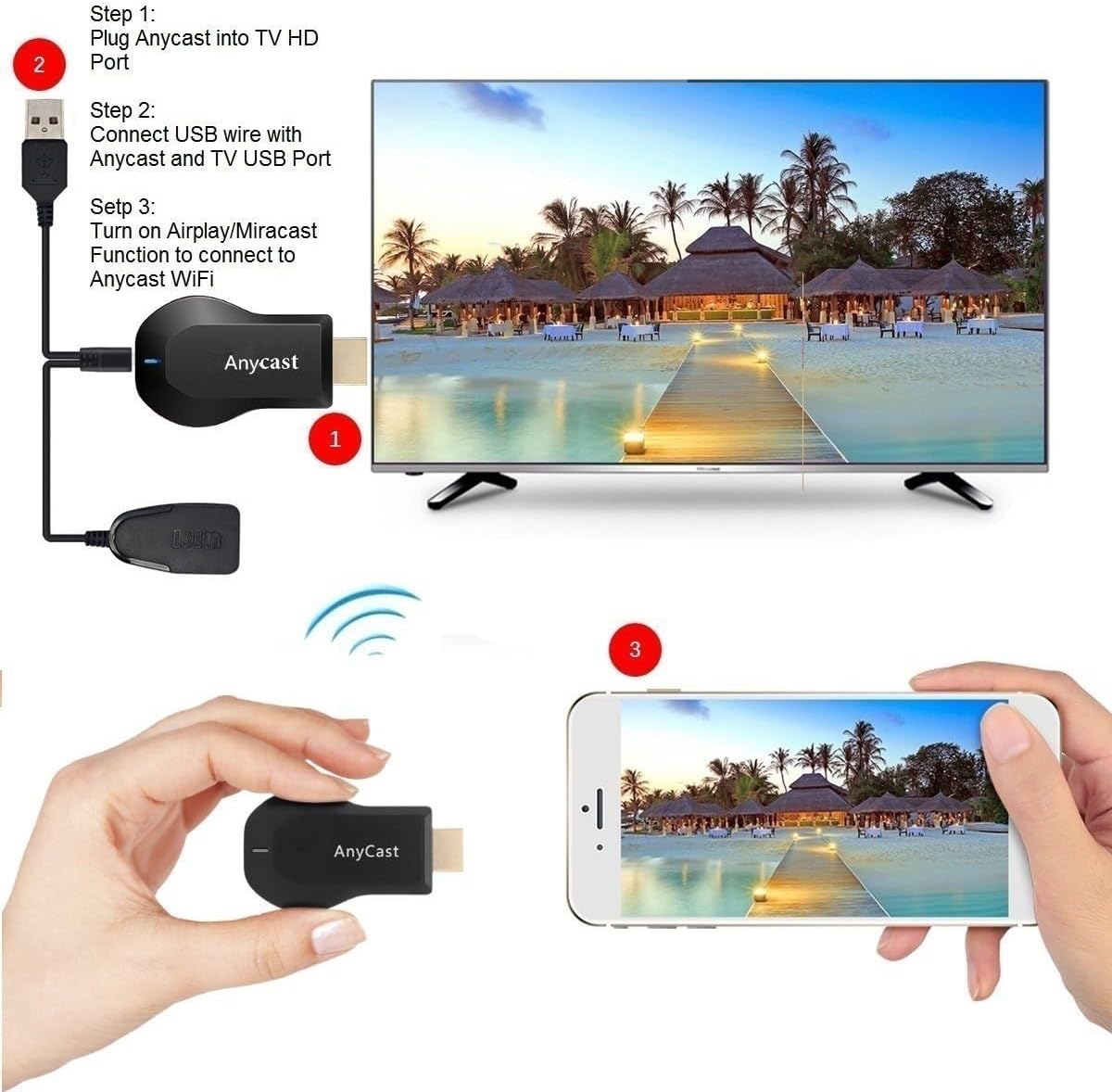
Installation of Anycast Dongle on an HD display(TV/Projector/Monitor,etc):
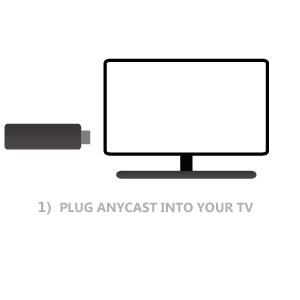
Plug Ancyast dongle into your hd display
Plug AnyCast dongle into HD port on TV and switch TV to the right input source.
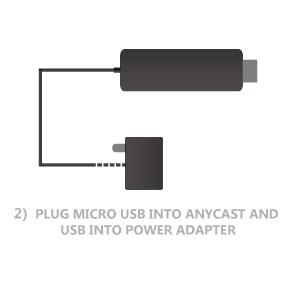
Plug USB cable for power supply
Connect WiFi cable (micro USB head) to AnyCast dongle. Plug USB cable into an external USB power adapter(power adapter is not inculded).
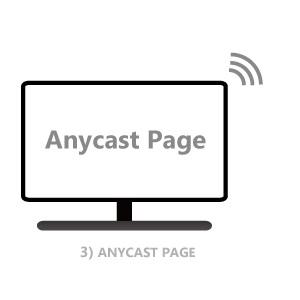
Anycast connected successfully
After connection, switch display to selected channel, and AnyCast page shows up on your display.
Connection Anycast Dongle with iOS Devices
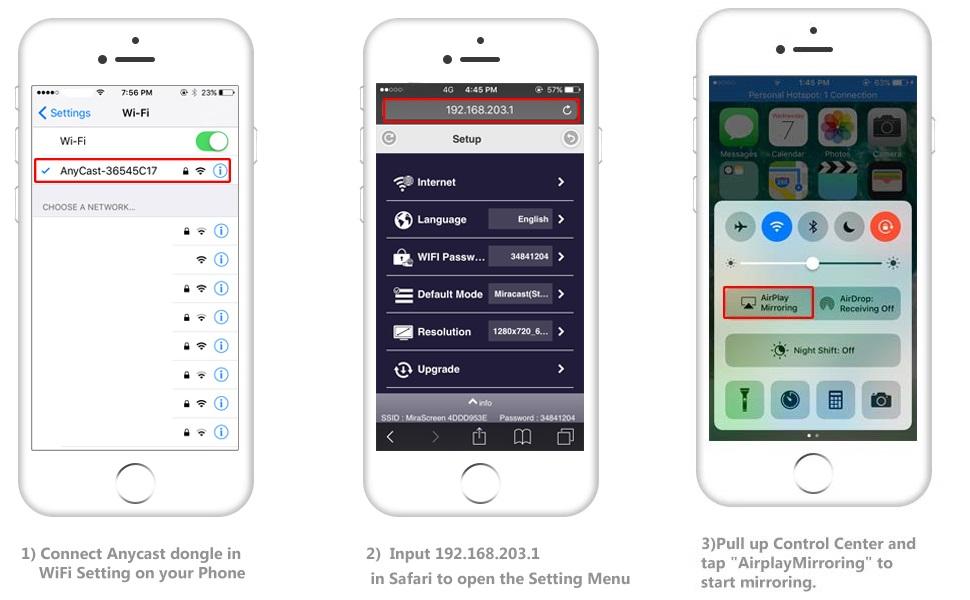
Setup on your for iPhone/iPad/Mac
Step 1: Connect AnyCast SSID in WiFi Setting on your for iPhone/ iPad/ Mac
Step 2: Go to Safari and input 192.168.203.1 to come to the setting menu and connect the dongle to your WiFi router
Note: In setting menu, you can connect your home wifi here by clicking “Internet” and Choosing your home Wifi to connect. Once connected, no need to reconnect again. Also, language , Anycast password, and Resolution can be changed by yourself in setting page.
Step 3: Pull up/down the Control Center on your phone and go to Airplay mirroring, then select AnyCast dongle to start to mirror.
Please note while use:
1. Once the Anycast dongle connects to your WiFi network successfully, your WiFi name shows up on the right top of your TV.
2. Once the Anycast dongle connects to your WiFi network successfully, the IP address 192.168.203.1 goes invalid, this generates a new IP address on your TV to access the Anycast setup page if needed.
3. Once the Anycast dongle and your phone are connected to the same WiFi network, do Screen Mirroring directly for next use, no need to other connection.
MOST IMPORTANT: If you dont have WiFi network, Please skip the Step 2, only do the Step 1 and Step 3 above. In this way, you use Cellular Data to access the Internet.
Connection Anycast Dongle with Android Devices
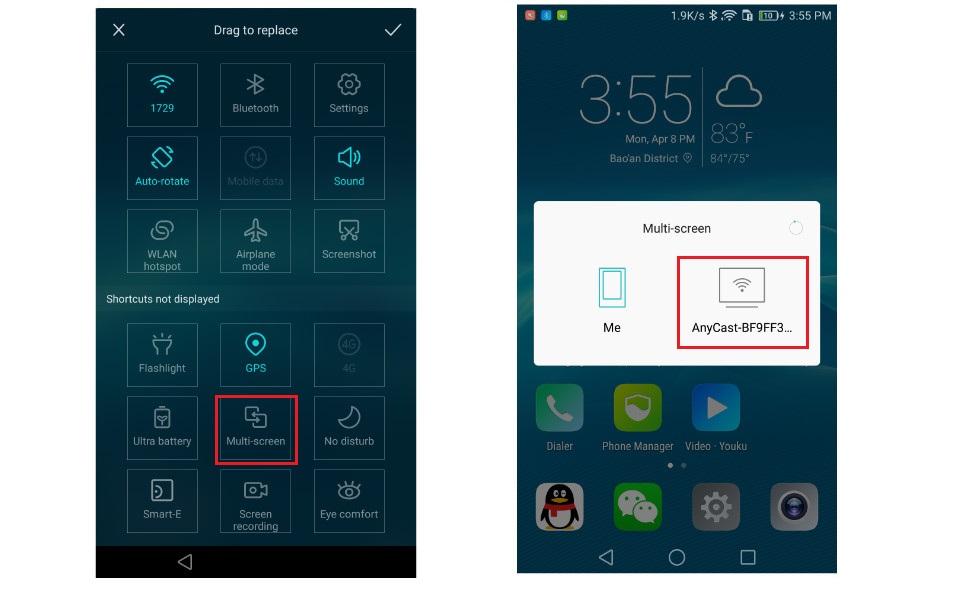
Setup on your Android devices
Step 1: Press the button on the dongle to switch to Android mode
Step 2: Access Miracast(wireless display/smartview/play to etc) on your Android device, and pair with Anycast to start mirror.
Please note for Android Users:
1. Miracast protocol has different names on different Android devices, please find your Miracast protocol correctly.
2. Not all Android devices support Miracast protocol, please check whether your phone supports Miracast protocol or not.
Setup on your Windows devices
Step 1: Press the button on the dongle to switch to Android mode
Step 2: On your Windows PC, press Windows + K, and choose AnyCast from the list to mirror your screen.
Then your windows screen will be mirrored on the TV.
Connect the Anycast dongle properly in correct mode, share screens easily and wirelessly.
Screen Mirroring Wirelessly for Business Education Home Entertainment
Notes: 1. Not compatible with the apps that have protocol protection, such as Netflix/ Amazon Video/ HBO go/ Hulu Plus sky go/DIRECTV etc
2. As of partial Android devices not support MiraCast protocol, no Miracast protocol no working, please do check whether your Android device supports Miracast or not.
Troubleshooting Notes:
Wroking Mode: Designs 2 modes in the mirroring dongle: Airplay Mode and Miracast Mode. It comes in Airplay Mode by default. If you use an Android device or a Windows device, switch to Miracast Mode by pressing the button on the dongle. Power Supply: Plug the USB charging cable into an external power adapter(no included) which offers 5V/1A power at least for stable connection.This is a 2.4G dongle. If there are both 2.4G and 5G network, your device may prioritize connecting to 5G network firstly. Connect your device to 2.4G network again after connecting the dongle to your local WiFi network.How to restart? Press and hold the button on the dongle for 3 seconds to restart it when switching to connect with differet OS devices.
Return Notes:
Returns can be made unconditionally within 30 days.
When returning the goods, please return all the product accessories to the original packaging box, so as not to affect the second sale.
Rather than returning the product, you prefer to figure out the proper usage?
Get in touch with the SmartSee TEAM.
SmarSee Wirelss Display Adapter is a technical product, it widely supports iOS, Android, Windows devices. Yet iOS, Android, Windows use different wireless protocol, and different protocol results in different connection, namely, connections are different on different devices.
We understand there are thousands different devices, no matter what device you use, only correct connection can reach the point. So once you are not sure about the connection, please check the User Manual. If the User Manual not indicates the connection of your device, please get in touch with SmartSee Team directly, we will tell the exact connection according to your device.
SmartSee Team is always here to support.
Add to Cart
Add to Cart
Add to Cart
Add to Cart
Add to Cart
Add to Cart
Customer Reviews
4.0 out of 5 stars 64
5.0 out of 5 stars 2
3.8 out of 5 stars 11
3.3 out of 5 stars 7
3.5 out of 5 stars 462
3.6 out of 5 stars 118
Price
$69.99$69.99 $229.99$229.99 $29.99$29.99 $39.99$39.99 $29.98$29.98 $38.99$38.99
Support Resolution
4K/1080P 4K/1080P 4K/1080P 4K/1080P 4K/1080P no data
Support WiFi Connection
No Need WiFi Setting. Support Running in dual band 2.4G and 5G network No Need WiFi Setting. Support Running in dual band 2.4G and 5G network. 2.4GHz Supports all your wireless networks with Wi-Fi 802.11ac (2.4 GHz/5 GHz) 2.4GHz no data
Support System
USB C Equiped Phone Laptop Any HD Source Android 5.0+, IOS 9.0+, Mac OS 10.0+, Windows 8+ Android 5.0+, IOS 9.0+, Mac OS 10.0+, Windows 8+ Android 5.0+, IOS 9.0+, Mac OS 10.0+, Windows 8+ no data
Features Support
Screen Mirroring and Extending No content limit. Support Netflix Prime Video, Sky Go, BT Sport, DIRECTV, HULU, Comcast TV, XFINITY, Vudu, Movistar, HBO and more. Whole screen mirroring and extending. No content limit. Support Airplay/MiraCast Mirroring/DLNA Streaming/Support Google Home app/Chrome Browser Casting Support Airplay/MiraCast Mirroring/DLNA Streaming/Support Google Home app/Chrome Browser Casting no data
Wireless display: SmartSee Wireless display adapter can mirror the screen of phone, tablet, laptop, pc to your TV/projector/monitor wirelessly. Share videos, photos, movies, files to a big screen easily. What shows on your screen can shows up on another big display. Cast a small screen to a large one. Make your TV a smart TV.
Easy to use: No App or drivers required. 3 steps to enjoy media on large screen: Plug->Connect->Mirroring: Plug the dongle into the HD port of your TV, projector, or monitor>Power it using the included USB WiFi antenna>Select the correct HD channel. The Anycast UI will show up, recognize your IP address and match your local language automatically. Connection steps differ by system,follow the User Manual based on your device type.
Compatibility(Multi-Platform Support) and Limitation: Support Macbook series, iOS 9.0+, Android 5.0+, Windows 10 devices through Airplay, Miracast, DLNA protocol. Notes: 1. NOT supports for Google Pixel, not for Motorola. 2. Android and Windows devices must support Miracast protocol for screen mirroring to work. 3. Not compatible with the apps that have protocol protection, such as Netflix/ Amazon Video/ HBO go/ Hulu Plus sky go/DIRECTV etc.
Wide Usage Scenarios (Professional & Everyday Use): Business & Office-Mirroring screen to projector, share PPT, mail, documents and other content wirelessly. Education & Training-Mirroring screen to big screen, share teaching content, classroom teaching, live demos, and workshops wirelessly. Home Entertainment- Watch with your family at home. Mirroring screen to TV, share photos, videos, movies wirelessly. Travel & Mobile Work- Carry it while travelling, share your phone to TV anytime. Retail & Exhibitions-Product demos, promotional videos, and catalogs. etc.
Usage Notes & Practical Tips: Anycast dongle is built-in 2 Modes-AirPlay Mode: For all iOS devices; Miracast Mode: For Android and Windows devices. A built-in mode switch button allows switching between AirPlay Mode (iOS) and Miracast Mode (Android & Windows) to match your device system. Press and hold the button for 3-5 seconds to restart the dongle(resolves most connection issues). Note: Always ensure the display is set to the correct HD input. Detailed connection please check the detailed description below or the User Manual according to your device system.
Regular OTA Update: This adapter supports automatic OTA (Over-The-Air) firmware updates directly from the cloud. Once connected to WiFi, the dongle upgrades itself to ensure ongoing compatibility with the latest iOS, Android, and Windows versions.